- FREE SHIPPING ON ALL ONLINE ORDERS -
ART PREP
CUSTOM ORDERS
Our typical response time is 1-2 business days. CUSTOM ORDERS is a REQUEST for work. It is not an order until details have been finalized and approved.
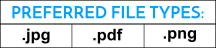
If your file is not one of the Acceptable Graphic Filetypes, production time may be delayed as we request changes.
If you need more help, feel free to read over the Art Prep Guide or view completed jobs in the photo gallery.
IMAGE QUALITY
Helpful Tip:
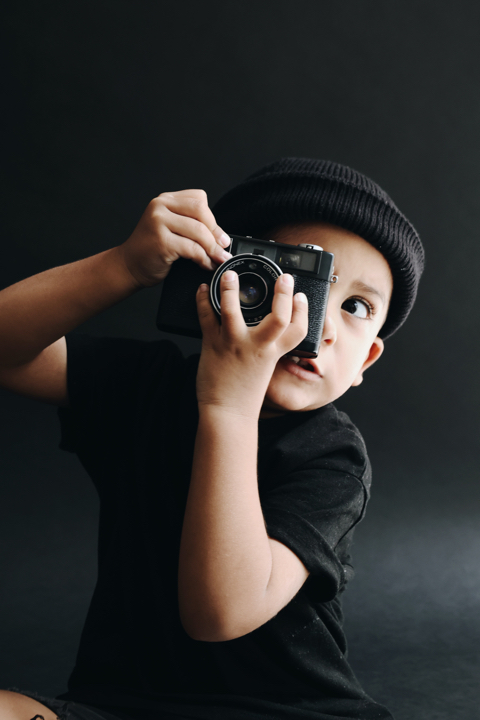
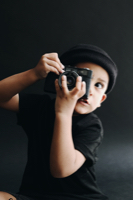
After saving an image, be sure to open the image and zoom in a few times to check the quality. If the image looks pixilated or blurry, you may need to find a higher resolution version of that same image.
High Quality
Low Quality
VECTOR ARTWORK
Create your designs at any size and save as PDF. Call for more information if you are concerned about size and quality of your design.
ACCEPTABLE FILE TYPES
Our preferred file formats are JPG, PNG, PDF. In some cases, we can look at a different file type, but may not be able to use it in production. If your file is none of the acceptable file types listed above, production time may be delayed as we request changes.
LARGE FORMAT PRINTING
300 DPI images at large sizes can produce extremely large files that are not suitable for uploading or emailing. Saving images at a lower DPI (around 72 - 150) will save on file size but retain quality.
QUALITY CHECKS
All graphics prebuilt into our online designer are perfect quality as we made them ourselves! If you are using your own graphics, we will inspect them prior to printing to ensure quality. A staff member will contact you directly if we determine your images are poor quality.
COMMON PROBLEMS WITH UPLOADED FILES
Low quality images - Common causes included images from a "screen grab", phone pictures, or low quality images found on the internet. In this case, you will be contacted via email with a revision link to revisit your design unless you approve the current quality.
Colors don't match or look the way I intended - Our equipment is color calibrated to match the colors we offer on our online designer. If you desire us to match colors not listed, we will require a PMS CODE so that we can create a match and additional charges may apply. We reserve the right to reject any project we feel may be too difficult to color match but will do our best to make it happen.
LOGOS & CLIPART QUALITY
Best results are obtained by using high quality, vectorized images and saving as a PDF. These type of vectorized images can be enlarged to any size. JPG images may lose quality as it scales in size, so be mindful if ordering a large format print.
NEED HIGH QUALITY DESIGNS?
A Better Sign provides Additional Design Services for a fee. These will never be added to an order without full consent of the customer. Our in house designers will work with you to create the product and design you need. Please contact if you need these services as prices vary.
RECENT COMPLETED JOBS:
GIVING BACK

Help us support families in Guatemala.
WEBSITE LAST UPDATED 01/2026